Image
AI Image Upscaler
Enlarge images and recover detail with AI super-resolution.
01Input
-
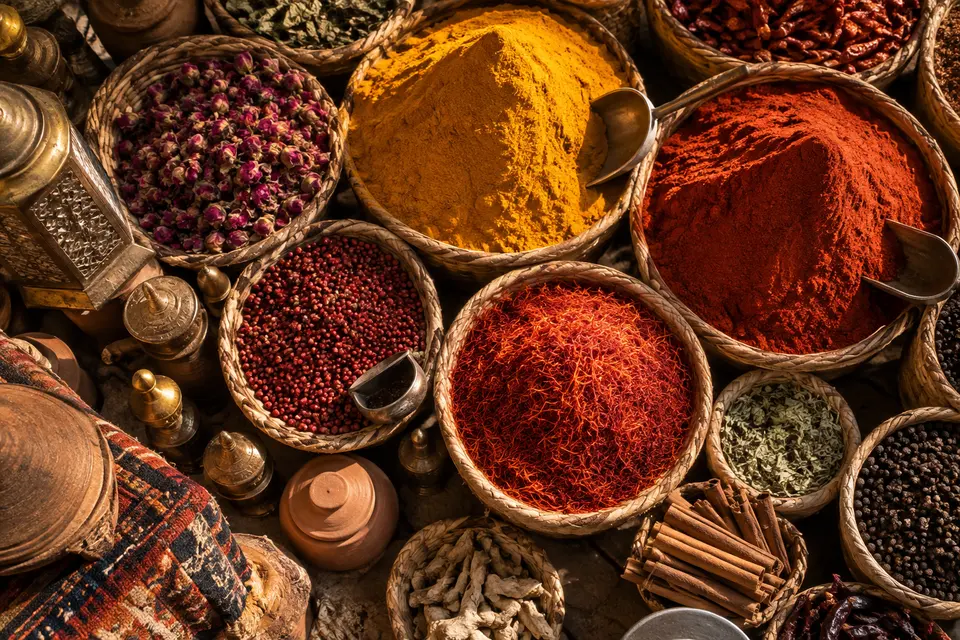
Spice market -

Window light -
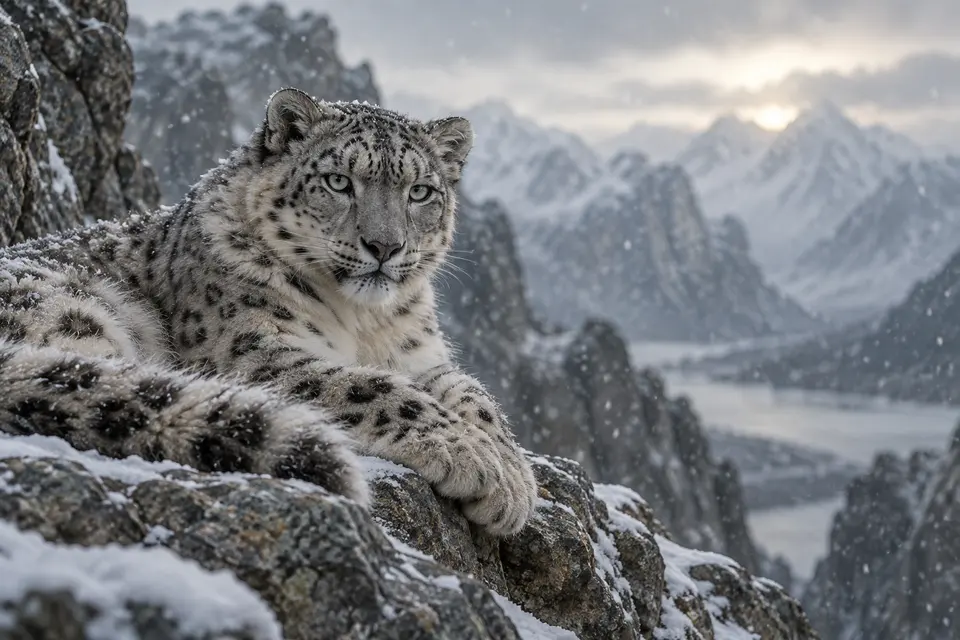
Snow leopard -
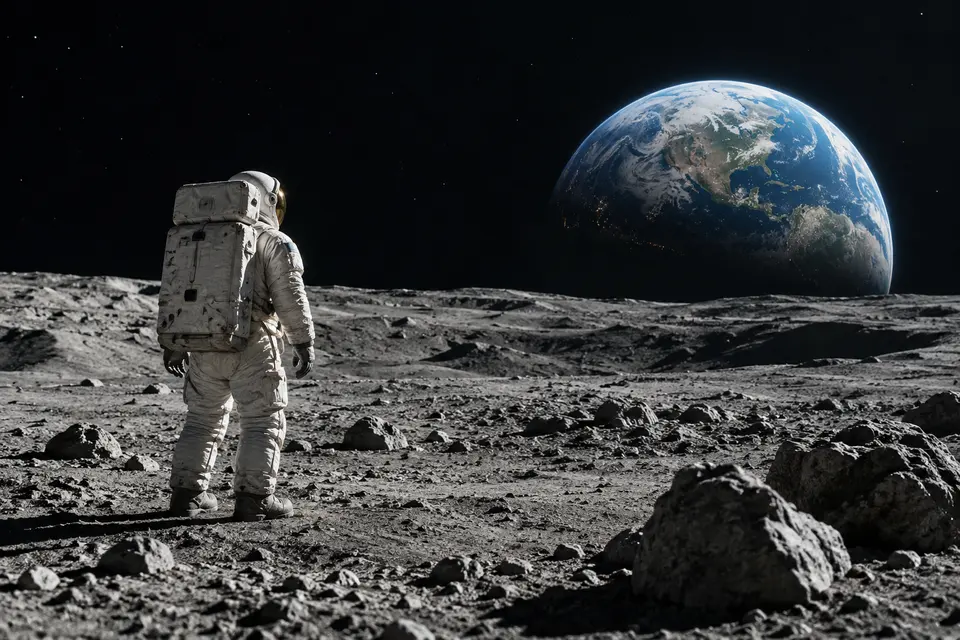
Earthrise -
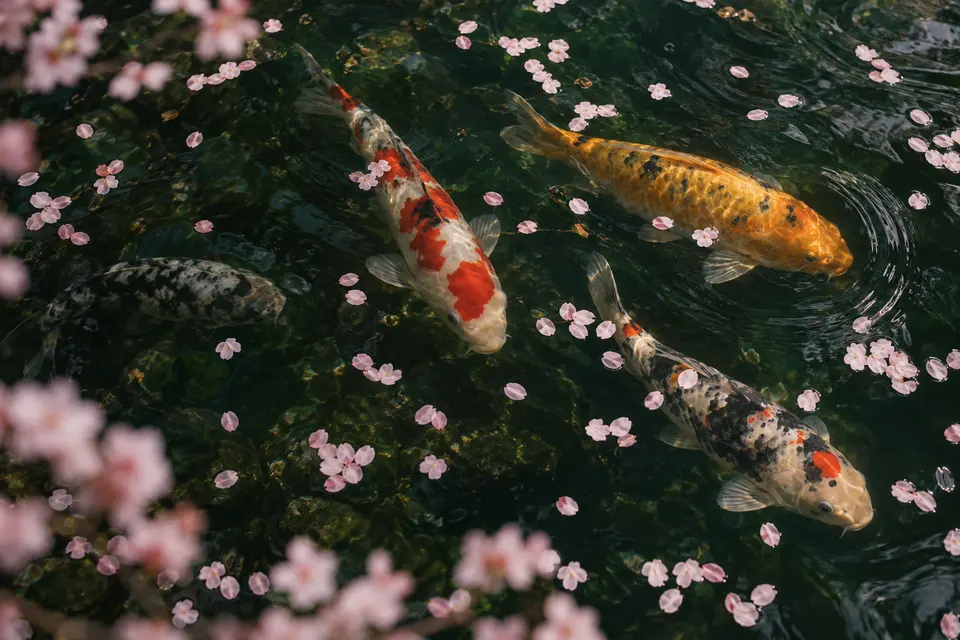
Koi and petals -
Cliff house -
Three pears -
Rain in the alley -
Silver shoreline -
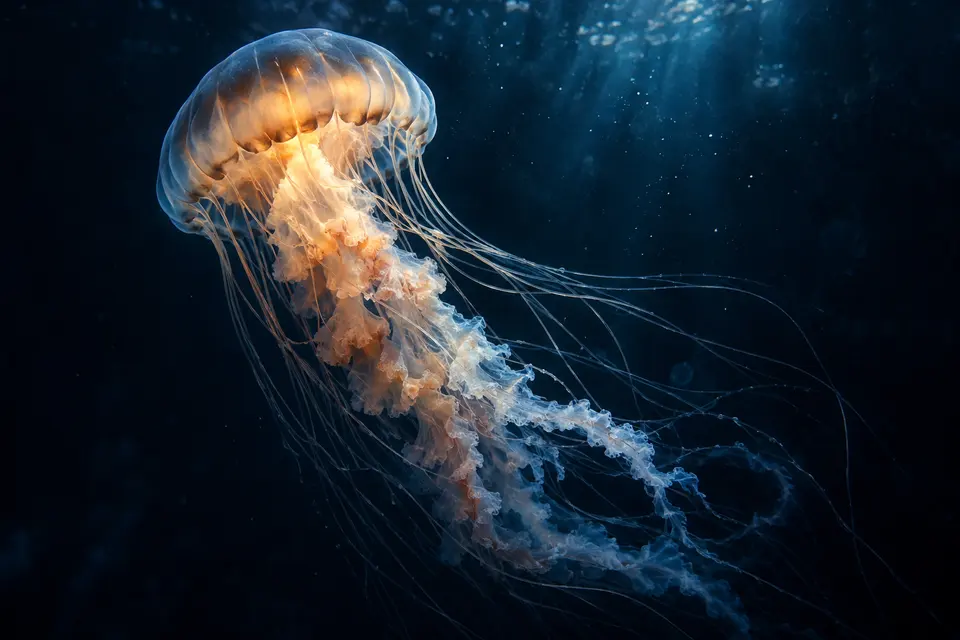
Deep blue -
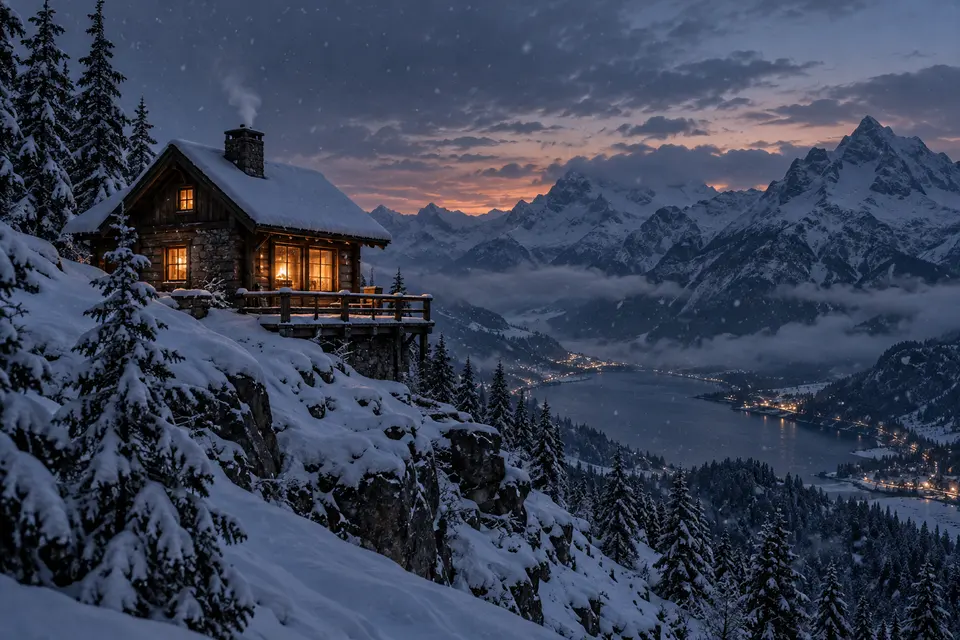
Cabin on the ridge -
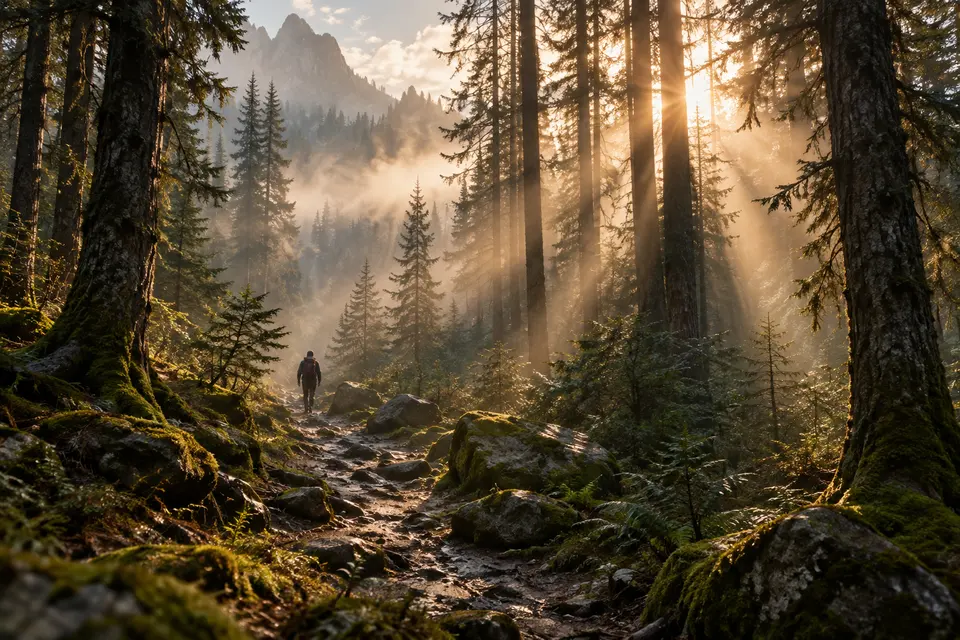
Morning pines -
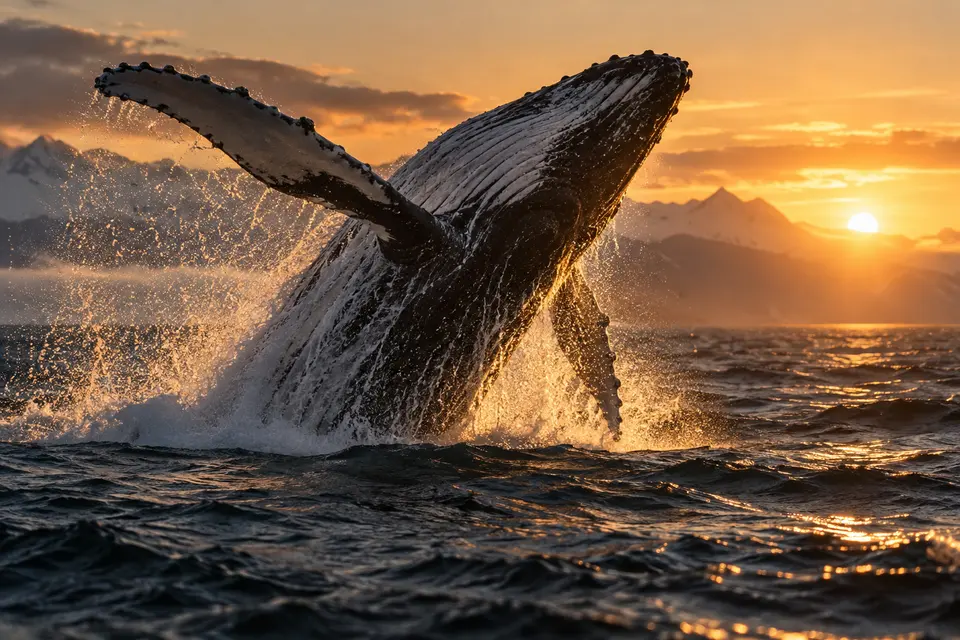
Breach at dawn -
Dune walker
Why use it on Smaltino
- 01
More pixels, more detail
Increase resolution while sharpening edges and textures.
- 02
One click
No prompt to write — upload and run.
- 03
Print and web ready
Prepare images for print, large screens and e-commerce zoom.
- 04
Works with your creations
Download an image from your creations and upscale it here.
Models you can choose
Pick a model in the generator above. Each one has its own page with parameters and pricing.
How it works
-
Upload an image
Upload the image you want to work on. JPG, PNG and WebP are supported.
-
Pick a model and settings
Choose a model and adjust its settings. The credit cost is shown before you run.
-
Generate and download
Run it, then download the result or find it in your creations when it is ready.
Apps for your next project
Apps open in a new tab, keeping your current tool input. Review the prompt, model and settings before generating.
Workflows this tool can help with
-
Creators preparing an image for a larger layout
Upload an image you want to display at a larger size. Check the delivered dimensions, text and edges in the intended layout.
-
Sellers reviewing a small product image
Use the existing product image as the source and compare fine details after upscaling. Check that labels and material textures still match the original.
Frequently asked questions
How do I upscale an image?
Upload the image and run the upscaler. No prompt is needed.
Will upscaling recover every missing detail?
No. Upscaling can generate or alter detail rather than recover the original information. Compare edges, text and textures with the source at the size you intend to use.
Which image-upscale settings are available?
The current Recraft Crisp Upscale form takes the uploaded image, needs no prompt and has no scale control. It does not guarantee a specific improvement in visual quality, so compare the result with the source at the size you intend to use.
Which AI models are available?
This tool runs on Recraft Crisp Upscale.
How many credits does one run cost?
Each run uses Recraft Crisp Upscale and costs 3 credits. The cost is shown before you generate.
Am I charged if a generation fails?
Requests rejected before task admission are not charged. When a task finally fails, the system releases reserved credits against its original debit record. Check the task and credit records for the settled balance. A status-query error alone is not a final task failure; task credit releases are not payment or subscription cash refunds.
Where can I check progress and see the delivered result?
After submission, the page shows processing, completion, content blocking or failure. If the status lookup fails, retry the status query; that does not mean the task itself failed. A successful task with an asset link shows an image or an audio/video player and a download link below. You can switch between multiple delivered outputs when present. If completion has no preview, check My Creations. No fixed completion time or percentage is promised.
Do changing settings or viewing results start another generation?
No. Reading FAQs, changing inputs or settings, and viewing, playing or downloading existing outputs do not submit a generation. Uploading and checking a quote are preparation steps. Review the selected model, inputs and current credit cost, then click Generate to submit. Clicking Generate again is a new request with its own cost; retries of a status query only check the existing task.
Ready to create?
Pay only for what you generate. Failed or blocked runs return their credits.