Video
Image to Video
Turn a photo or illustration into a short animated video clip.
01Prompt
-
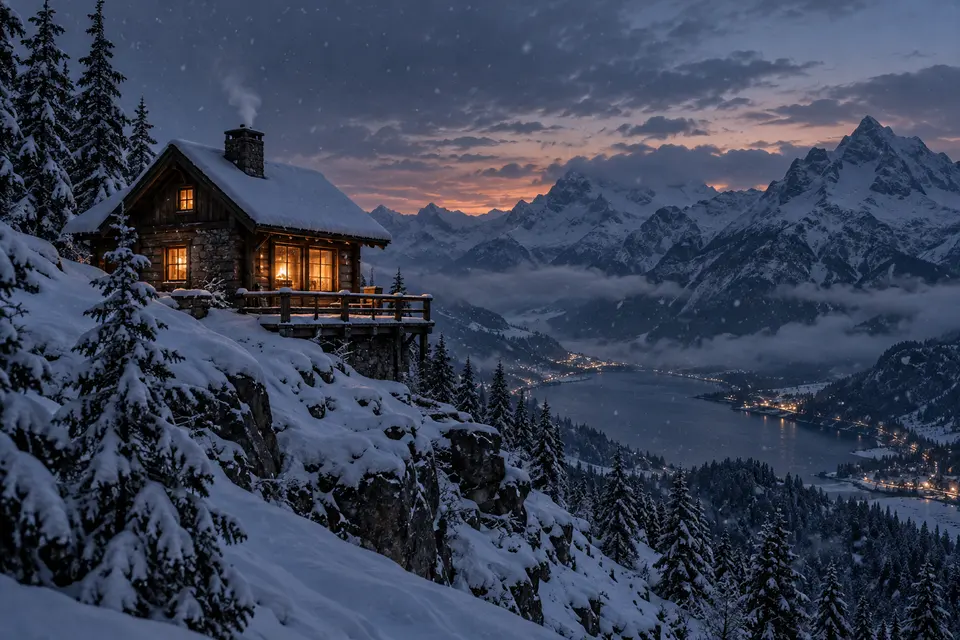
Cabin on the ridge -
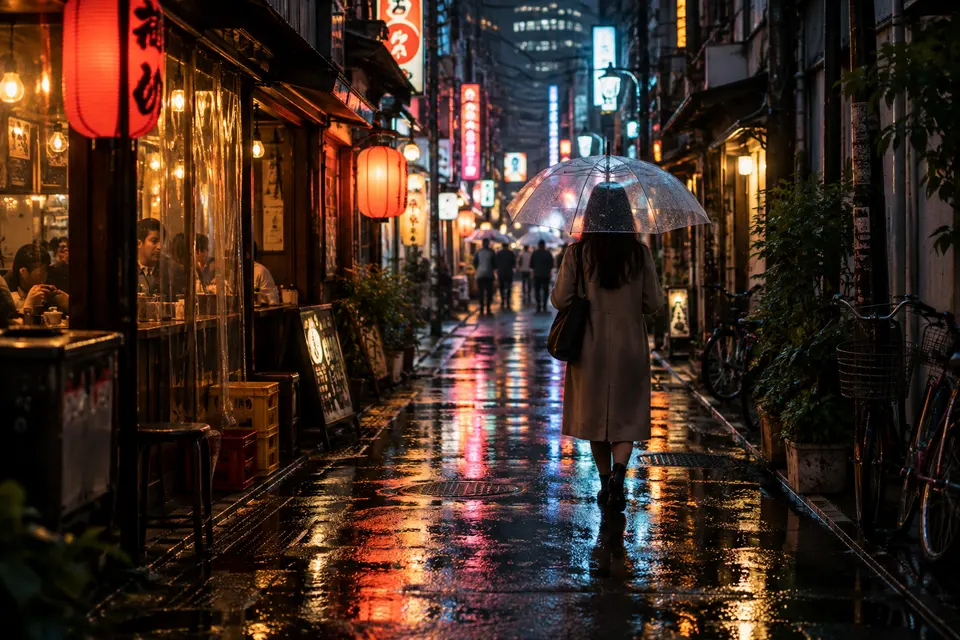
Rain in the alley -
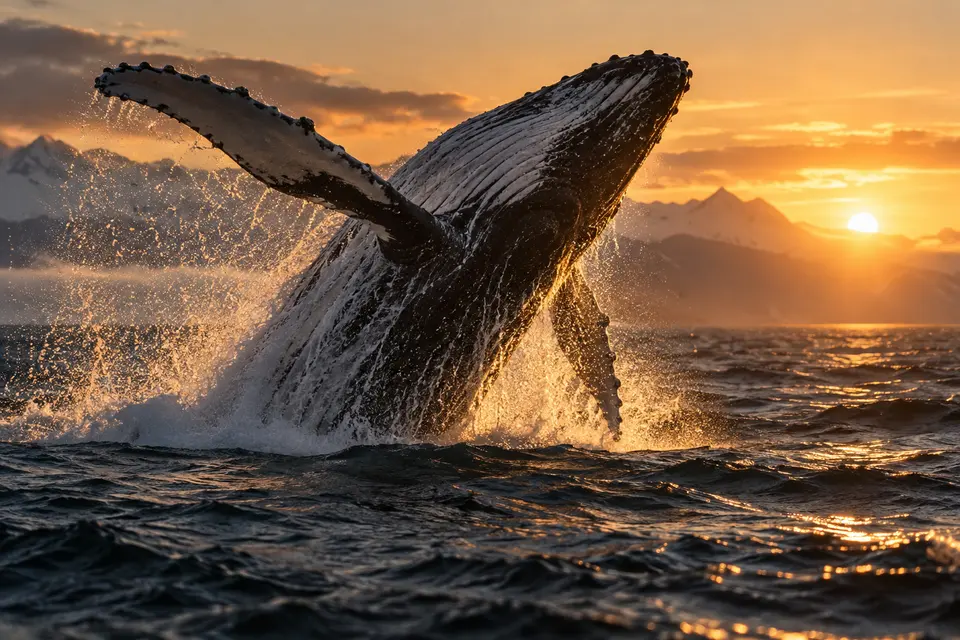
Breach at dawn -
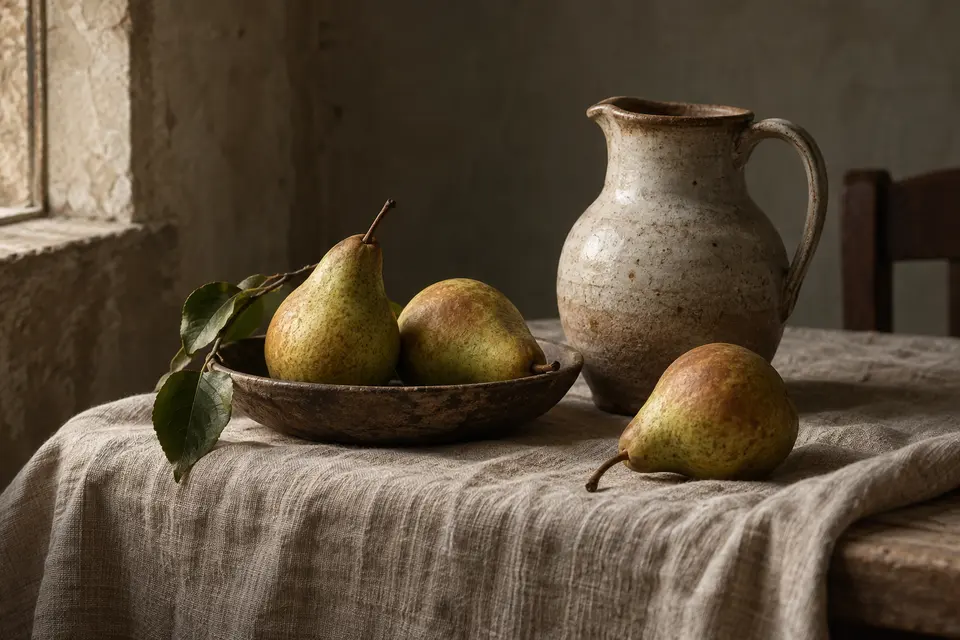
Three pears -
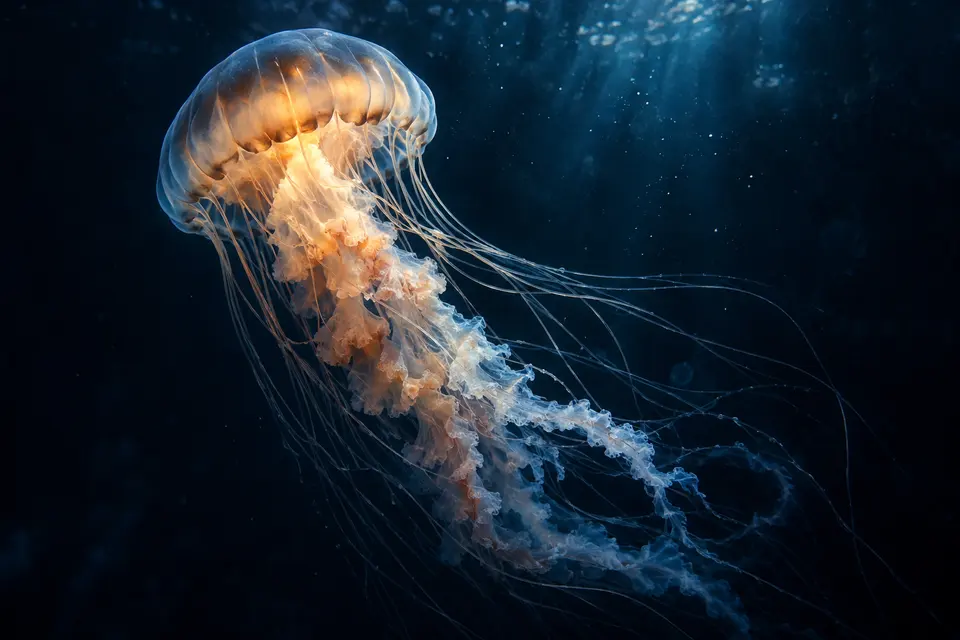
Deep blue -
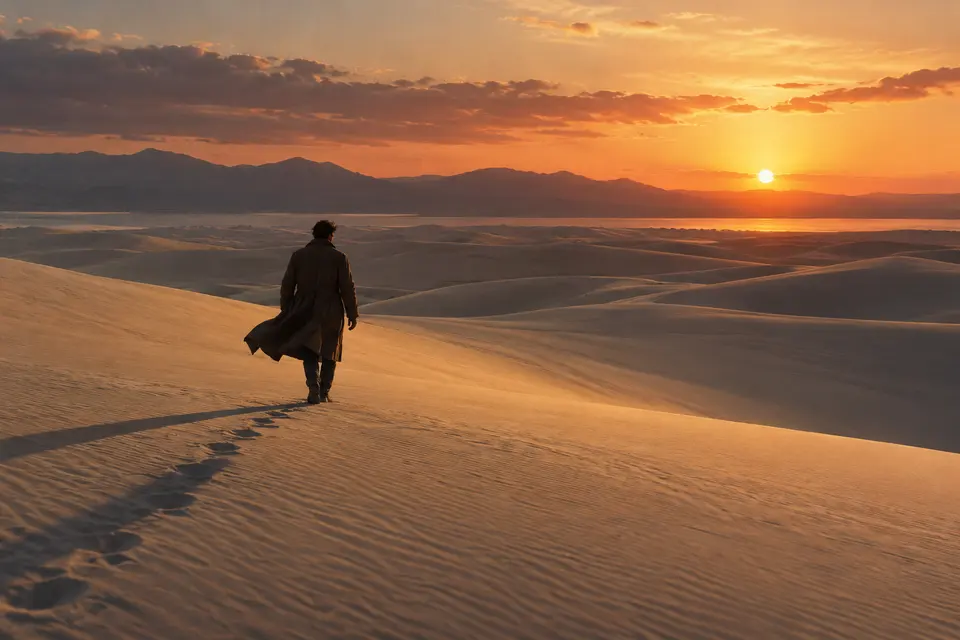
Dune walker -
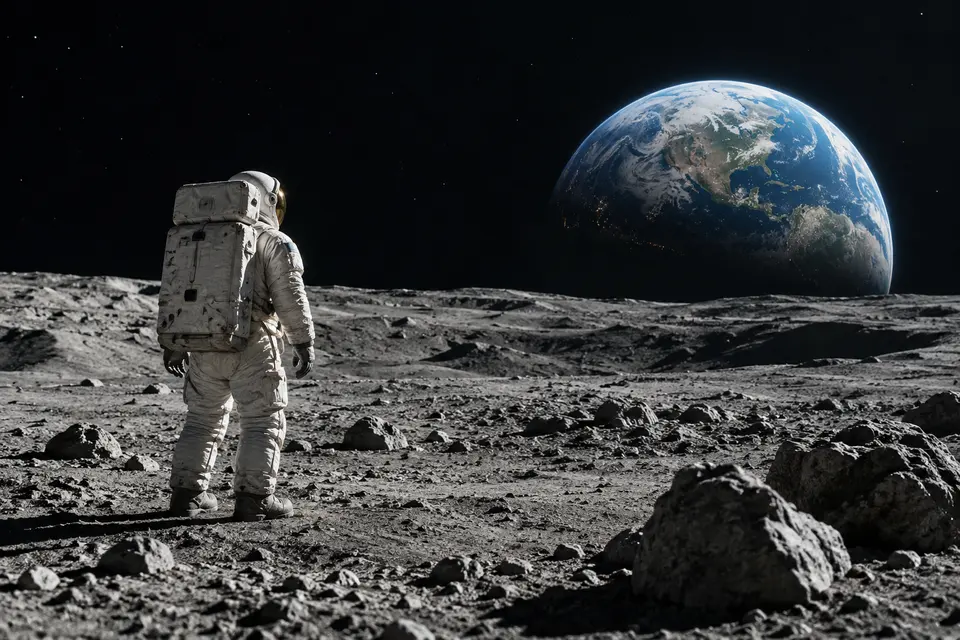
Earthrise -
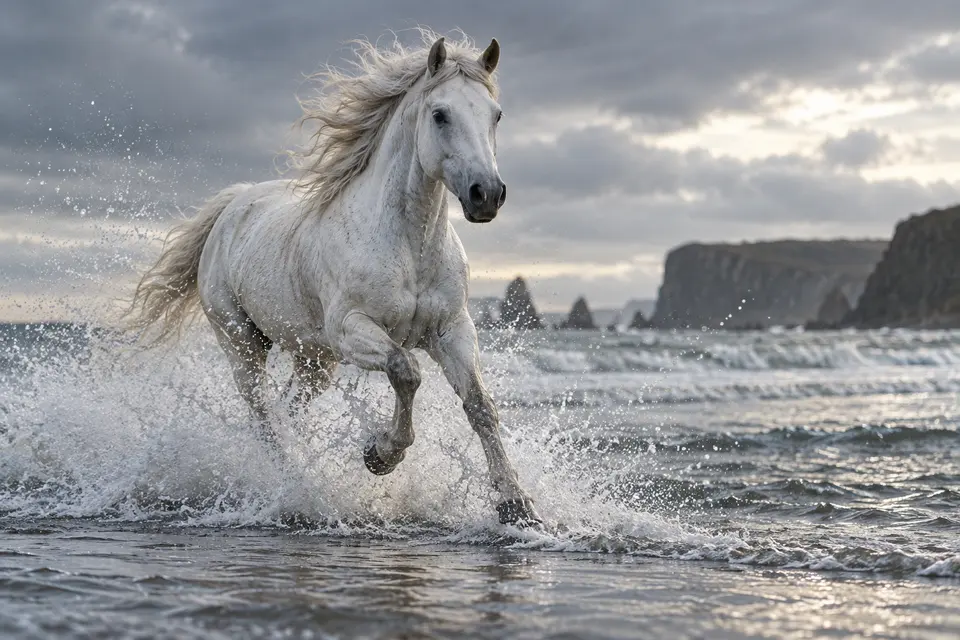
Silver shoreline -
Morning pines -
Koi and petals -

Window light -
Cliff house -

Spice market -
Snow leopard
Why use it on Smaltino
- 01
Animate any still
Bring product shots, portraits and illustrations to life with natural motion.
- 02
Direct the motion
Describe camera moves and actions to steer how the scene unfolds.
- 03
Fits every format
Choose duration and aspect ratio for social posts, ads or presentations.
- 04
Several models
Switch between video models to compare motion styles.
Models you can choose
Pick a model in the generator above. Each one has its own page with parameters and pricing.
How it works
-
Add an image and a prompt
Upload a reference image and describe what should happen to it.
-
Pick a model and settings
Choose a model and adjust its settings. The credit cost is shown before you run.
-
Generate and download
Run it, then download the result or find it in your creations when it is ready.
Apps for your next project
Apps open in a new tab, keeping your current tool input. Review the prompt, model and settings before generating.
Workflows this tool can help with
-
Sellers testing motion from a product still
Prepare a product image and describe a simple movement or camera move. Review the clip for changes to the product before including it in a presentation.
-
Property presenters drafting a room shot
Start with a room photo and describe the intended camera motion. Inspect the generated geometry and objects against the photo before deciding whether to use the clip.
Frequently asked questions
How does image to video work?
Upload a still image, describe the motion you want, and the model animates it into a short clip.
What should I check in an image before animating it?
Check that the subject is clear and the image passes the selected model's upload rules. Describe camera movement and action explicitly, then inspect the generated motion; a clear source is not a guarantee of an accurate clip.
Is an end frame required, and are settings the same for every model?
Hailuo requires a start frame and prompt; an end frame is optional. Its current form has no selectable duration, aspect-ratio or audio controls. Other models, such as Kling, expose different settings. Prepare inputs and review options after choosing the model.
Which AI models are available?
You can choose between 4 models: Hailuo Image to Video, Grok Imagine Image to Video, Kling Image to Video, Hailuo 2.3 Image to Video.
How many credits does one run cost?
It depends on the model: from 18 to 32 credits per run. The default model, Hailuo Image to Video, costs 24 credits. The exact cost is shown before you generate.
Am I charged if a generation fails?
Requests rejected before task admission are not charged. When a task finally fails, the system releases reserved credits against its original debit record. Check the task and credit records for the settled balance. A status-query error alone is not a final task failure; task credit releases are not payment or subscription cash refunds.
Where can I check progress and see the delivered result?
After submission, the page shows processing, completion, content blocking or failure. If the status lookup fails, retry the status query; that does not mean the task itself failed. A successful task with an asset link shows an image or an audio/video player and a download link below. You can switch between multiple delivered outputs when present. If completion has no preview, check My Creations. No fixed completion time or percentage is promised.
Do changing settings or viewing results start another generation?
No. Reading FAQs, changing inputs or settings, and viewing, playing or downloading existing outputs do not submit a generation. Uploading and checking a quote are preparation steps. Review the selected model, inputs and current credit cost, then click Generate to submit. Clicking Generate again is a new request with its own cost; retries of a status query only check the existing task.
Ready to create?
Pay only for what you generate. Failed or blocked runs return their credits.