How video upscale credits are calculated
Upload requirements, verified source duration, scale factors and the credit total you see before submitting a Topaz video task.
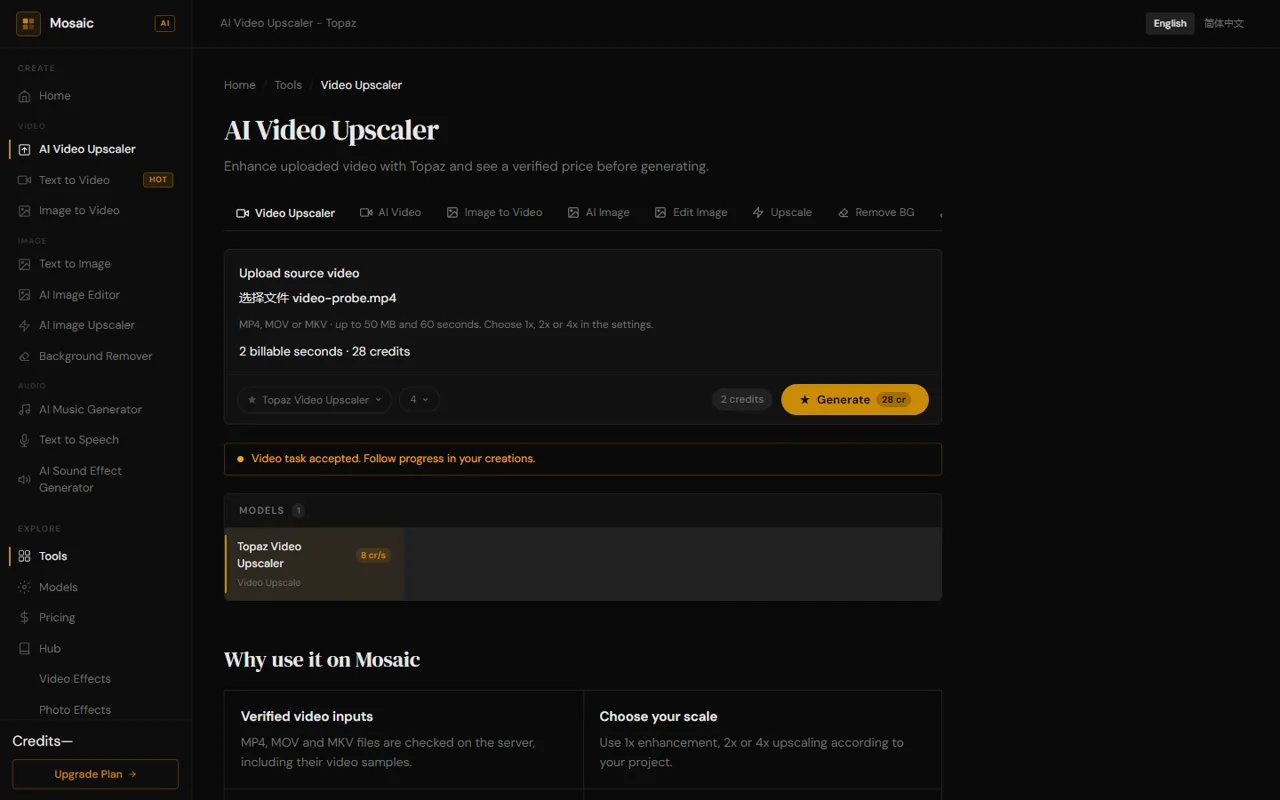
Start with a complete video file
The video upscaler accepts MP4, MOV and MKV files up to 50 MB and 60 seconds. The server checks the container, the video track and the actual media samples before saving the source.
Changing a file extension does not convert a video. An incomplete download or a file without video samples is rejected. Export a fresh file from your editor if verification fails.
Read the total, not just the base rate
The source duration is verified on the server and rounded up to a whole second. 1x and 2x use 8 Smaltino credits per source second; 4x uses 14.
For a 1.5-second source, the billable duration is 2 seconds: 16 credits at 2x, or 28 credits at 4x. A 10.1-second source is billed as 11 seconds: 88 or 154 credits respectively.
Changing the scale triggers a new quote. Submission stays disabled until the quote matches the selected scale. Client-provided duration or price fields cannot replace the verified values.
Upload, quote and submit
Source files are stored privately. The processing service receives a time-limited source link. Your finished output appears in your creations after processing completes.
A submitted task is not yet a completed video. Follow the task in your creations. If processing fails, its reserved task credits are returned. Redo creates a fresh request, checks access to the source again and calculates the cost again.
- Open AI Video Upscaler and upload the source.
- Choose 1x, 2x or 4x and wait for the credit total.
- Check the total and your balance, then submit.
- Open your creations to follow progress and download a completed result.
What this walkthrough proves
The interface shown here was checked with a self-created black video in a local test environment. Requests used the real upload and quote handlers; the AI provider was simulated. The screenshot demonstrates the workflow and credit display, not Topaz output quality.
Production processing requires configured private storage and an AI provider. If storage is unavailable, the upload fails instead of silently moving a source into public storage. Upscaling quality depends on the source; a higher scale does not guarantee recovered detail.